How to use the Supercut feature
Created by: Shirel G
Modified on: Wed, 25 Nov, 2026 at 3:36 PM
The Supercut feature lets you combine your best highlights from a match into one video automatically.
- Open the Sessions tab and select a match.
- Click the lightning bolt (⚡) icon in the toolbar below the video or the keyboard shortcut Ctrl+M:
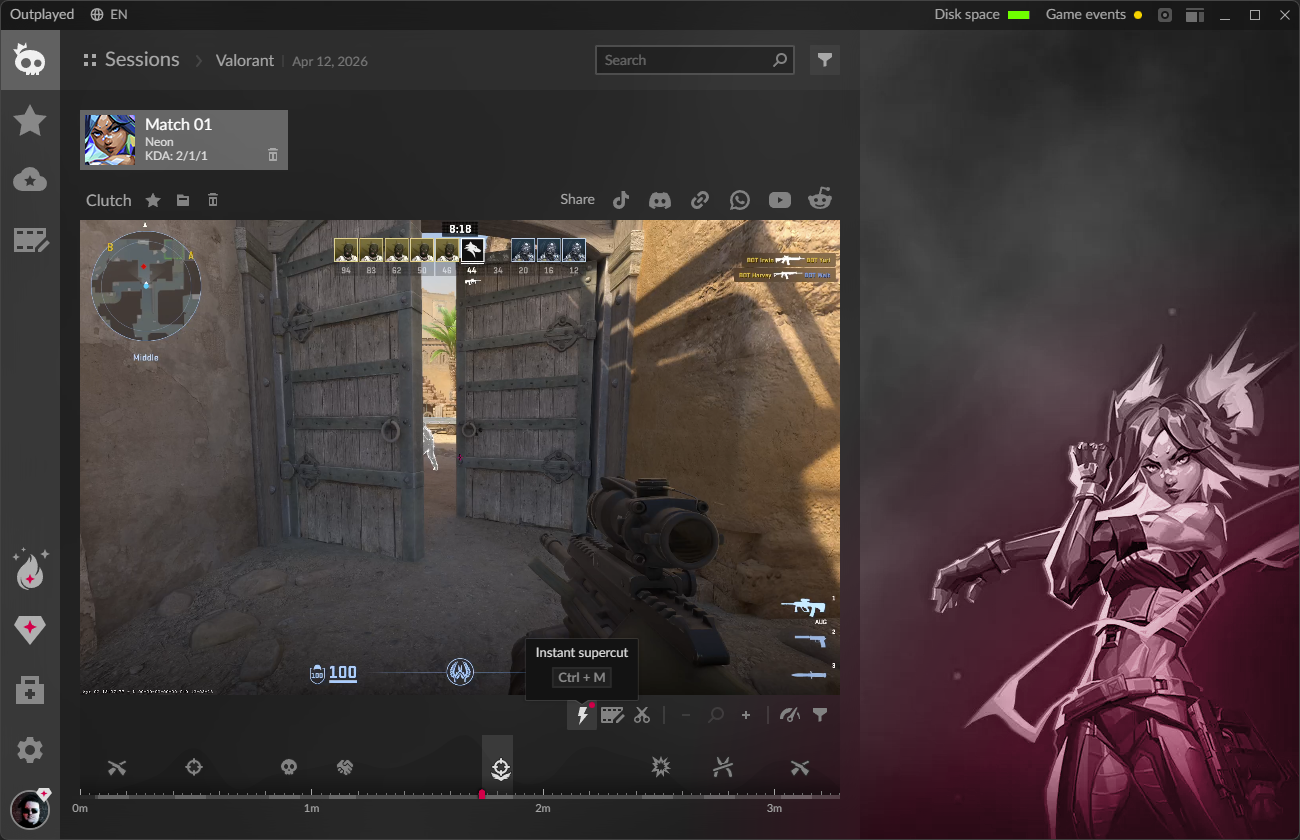
- Under Events, select the game events you want to include (e.g. Kill, Death, Assist, Clutch, Headshot). Checked events will be included in the Supercut.
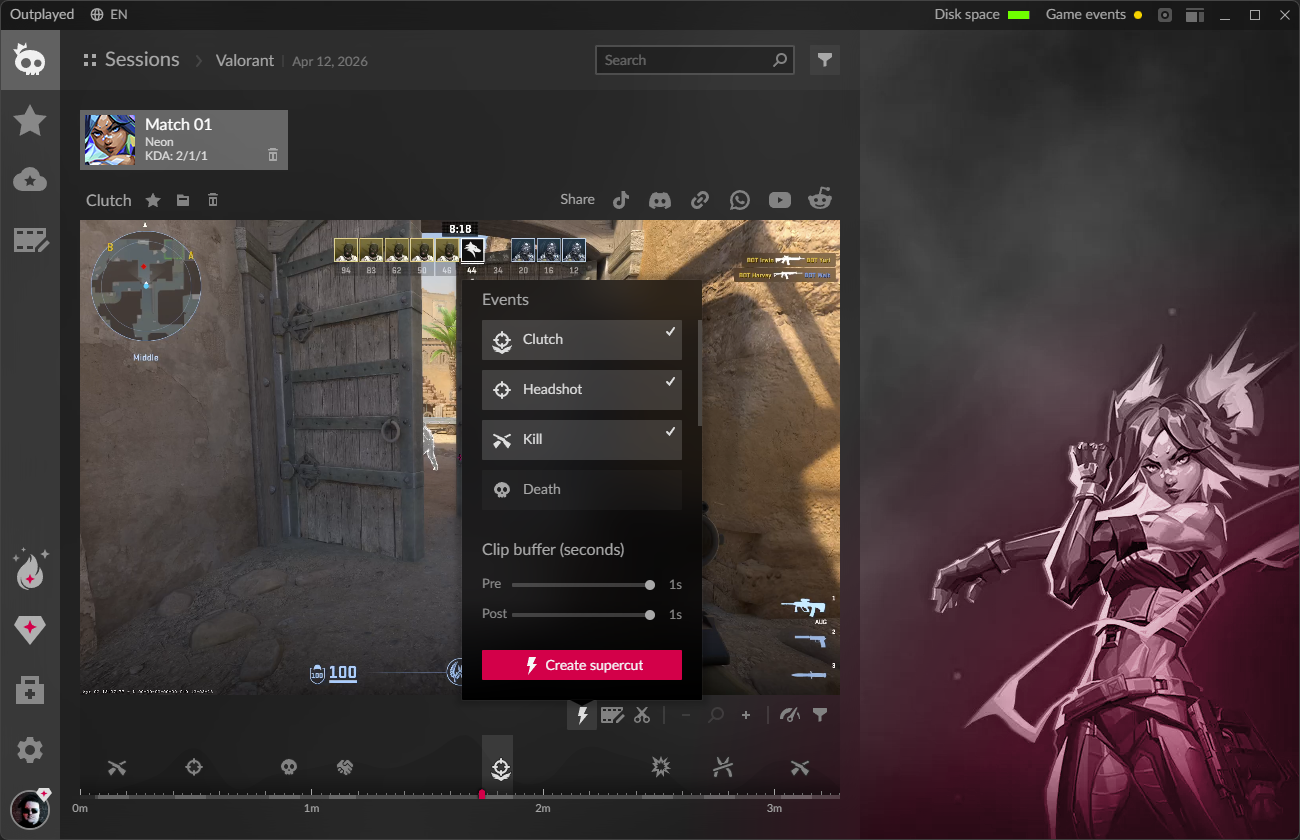
- Use the Clip buffer sliders to set how many seconds before (Pre) and after (Post) each event to include in each clip.
- Click Create Supercut.
Once the Supercut is created, it will appear as a separate item in the Sessions tab alongside the original match recording. A "Supercut created!" notification will appear at the bottom of the screen.
Click View & Share to review or share it.
Note: At least one event must be selected to create a Supercut. If no events are selected, you will see the message: "Select events to create Supercut."