
Note: Do not start a new game process/recording while backing up or restoring.
If you are planning on making any changes to your computer or to Outplayed (such as uninstalling and reinstalling the app), you can create a backup of all your recording sessions on Outplayed and then restore them at a later date.
Please note that the backup and restore options are disabled while in-game.
Currently we can only backup the recording sessions and settings, but we’re working on adding an option to backup your editor projects as well!
Take me to...
Creating a backup
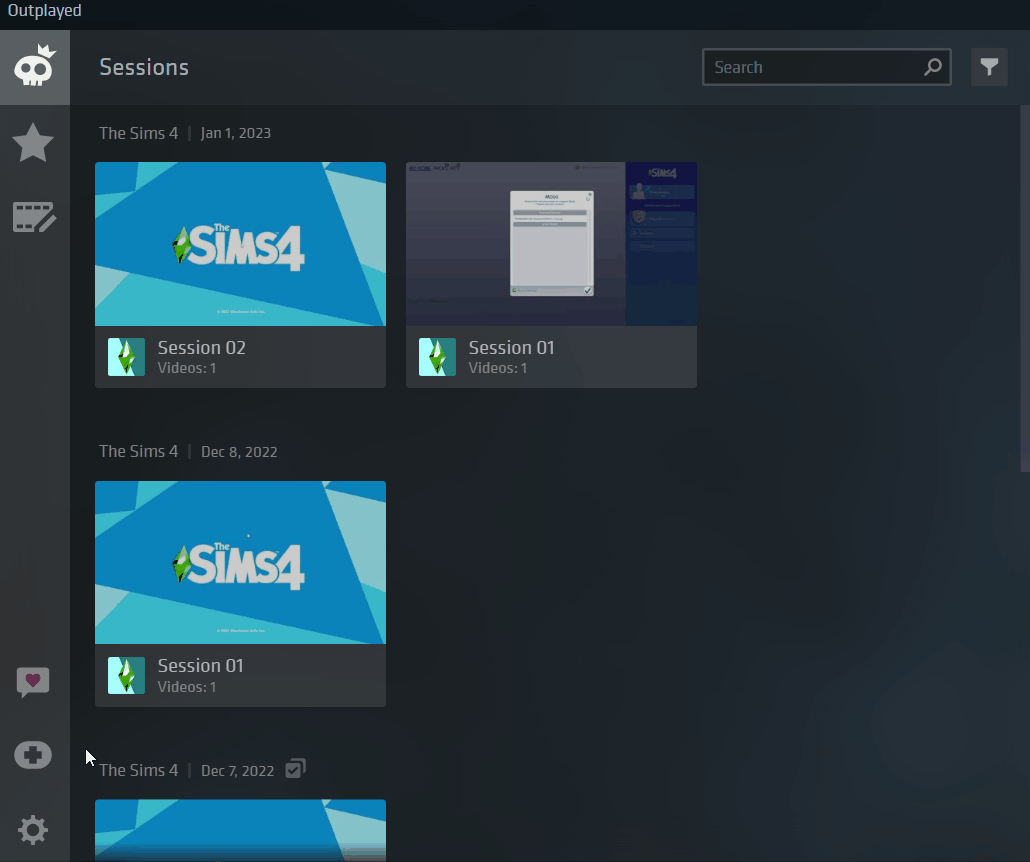
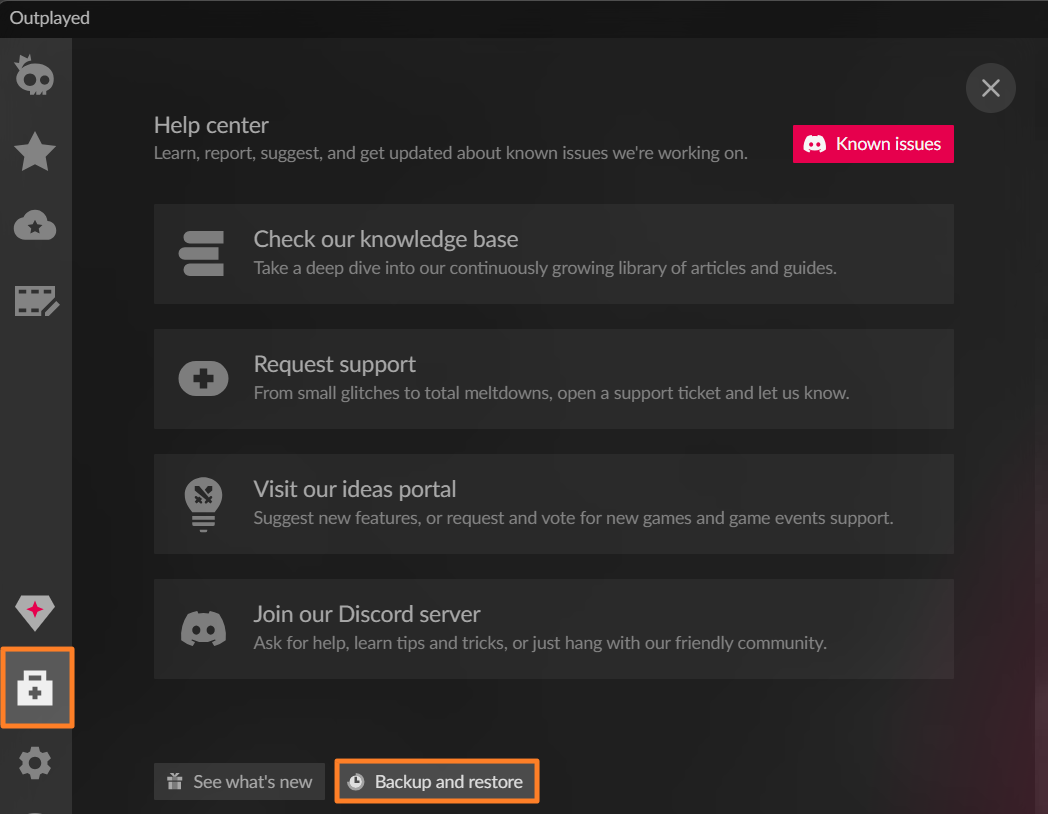
- Click on the Backup and Restore option in the Help Center
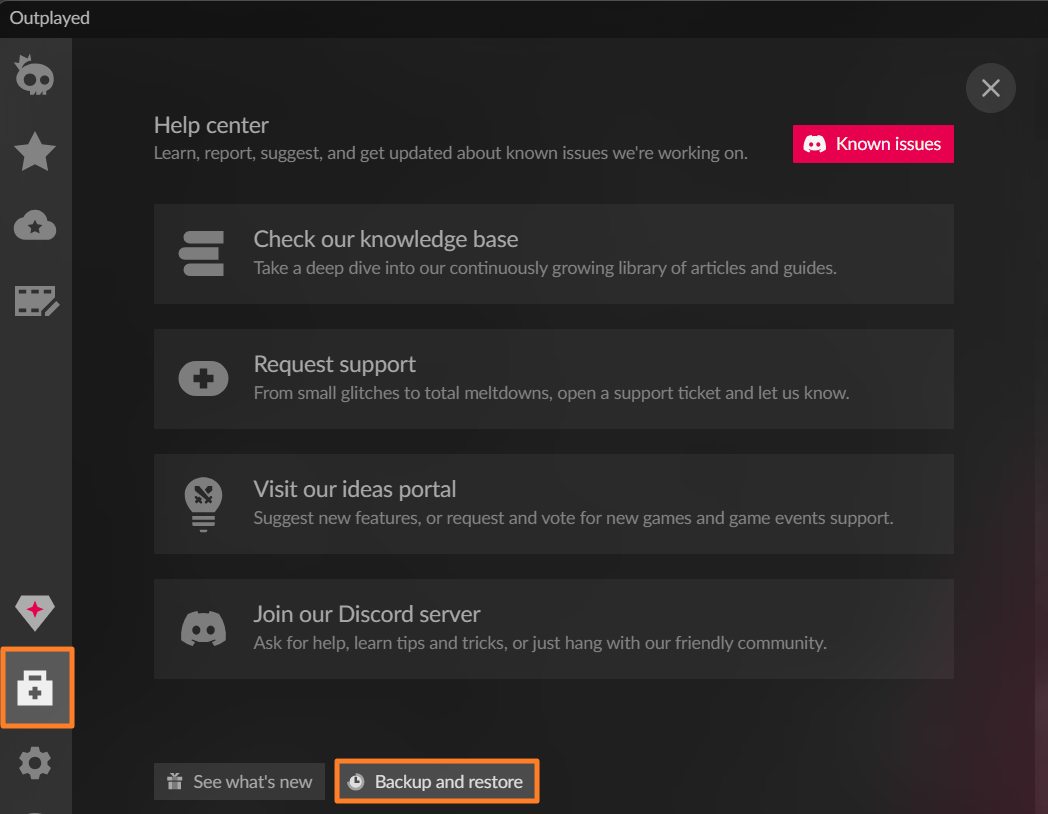
- Select Backup
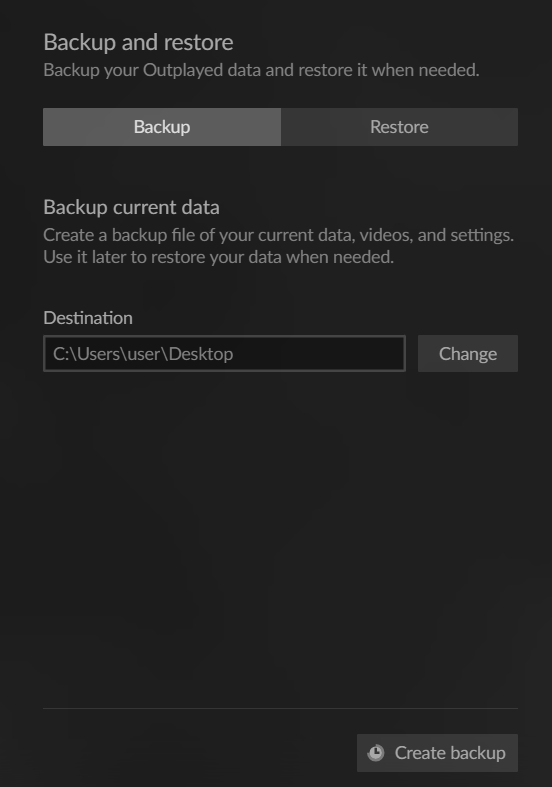
- Choose the destination folder that the backup file will be saved to. You can change the destination if needed. Make sure that the destination folder has enough space for the backup file!
- Click on Create Backup
Make sure to keep your backup file safe! Without the file it will not be possible to restore the data.
Restoring from a backup
Note: Restored backups are added to the existing data, and may overwrite it. This can not be undone!
To restore your files from a backup file follow these steps:
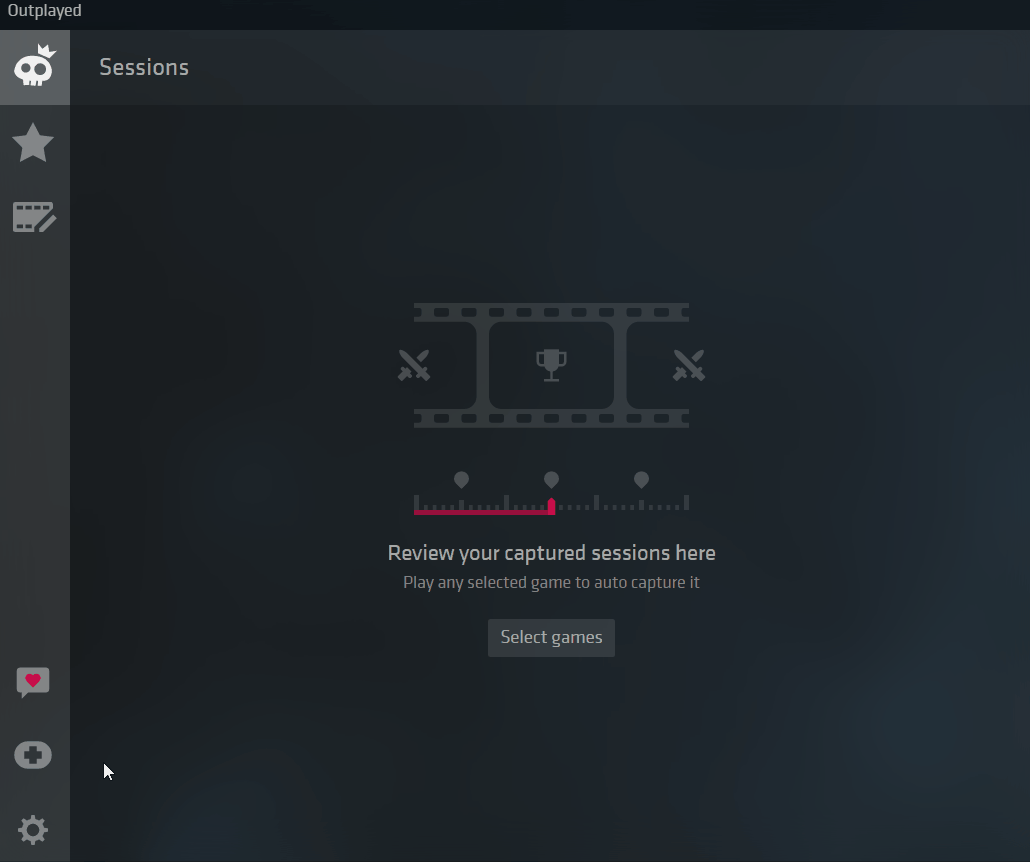
- Click on the Backup and Restore option in the Help Center
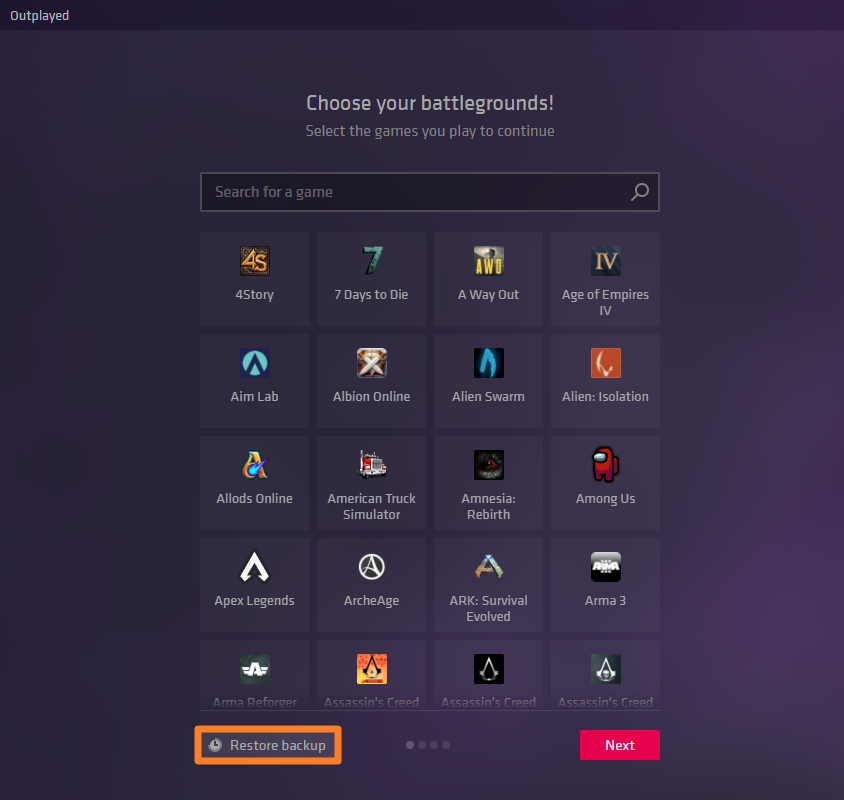
Or from the first installation screen
- Select the Restore tab
- Choose the media folder for your restored data, keep the current folder if you want to add data, or choose a new one for a clean start (If your current video locations are spread over various folders the restore process will tidy it up.)
- Click on “Browse” and select your .obp backup file
- Click on Restore backup
- Once the backup is completed it will show as restored successfully
- Relaunch Outplayed to complete the restoration
Please make sure to wait until the backup restore is completed before making any changes to the data such as using the screen recorder, generating clips, exporting videos, and any other actions that will add or remove data.
If the backup file has been corrupted or deleted but you still have the recording files themselves you can import the recordings into Outplayed using these steps.