Please note that moving or editing the recording files directly will remove them from Outplayed.
If you would like to change the Outplayed Media folder at any point please follow these steps:
1. Create a backup of your recording files using the steps from- How to Backup and Restore your Outplayed recordings.
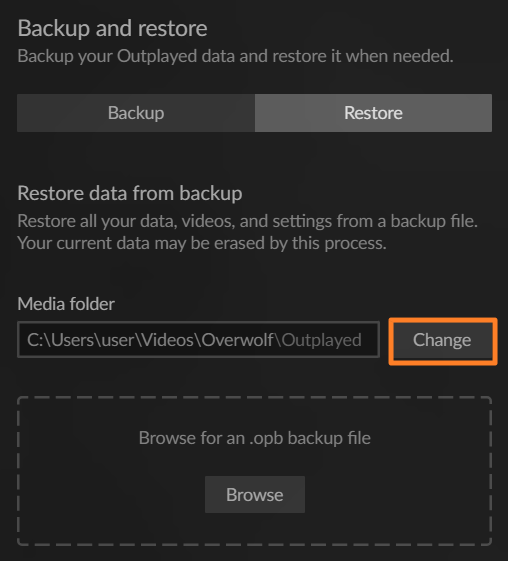
2. Restore the backup folder directly to the new Media folder:
Please note that if you have changed the storage folder location before creating a backup the recording files may be disconnected/deleted from Outplayed.
If the recording files have disconnected from Outplayed you can reconnect them using this guide: How to locate and reconnect clips
If the files have been deleted from Outplayed but you still have a copy of the recordings you can import them into Outplayed using this guide: How to import external clips into Outplayed
We do not recommend using an external driver as the Media folder.