
Take me to...
How to delete clips
Please note that deleting clips by making changes/deleting the original recording file from the computer and not from the Outplayed app may cause issues in Outplayed.
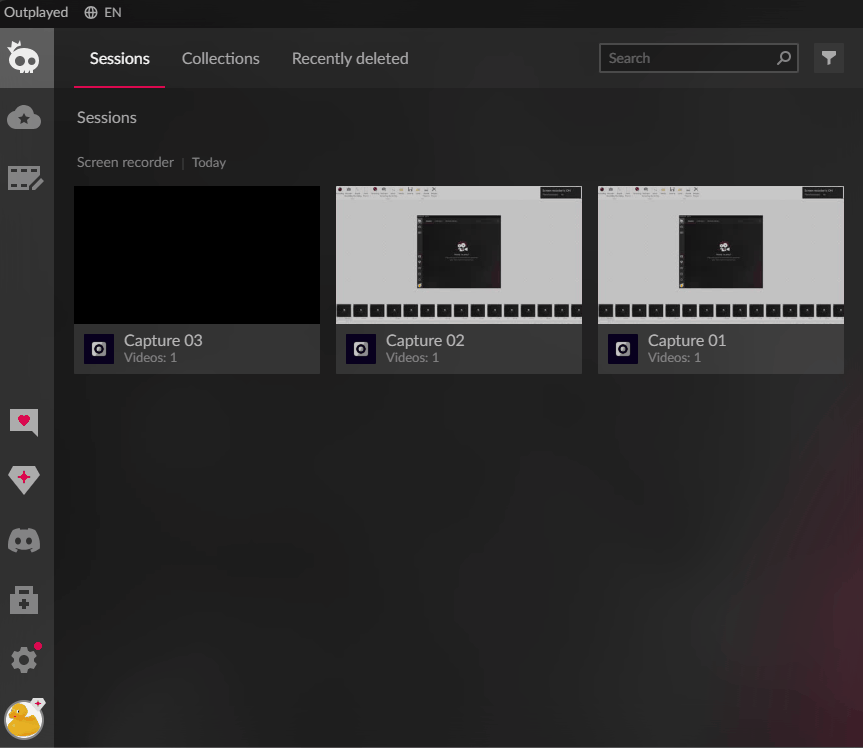
You can delete a clip by going to the Sessions tab and selecting one or more of the clips then clicking on "Delete items"
You can restore recently deleted clips using the steps Here.
If the clip has been marked as Favorite please go to the Favorites tab (Sessions > Collections) to delete the clip.
How to restore recently deleted clips
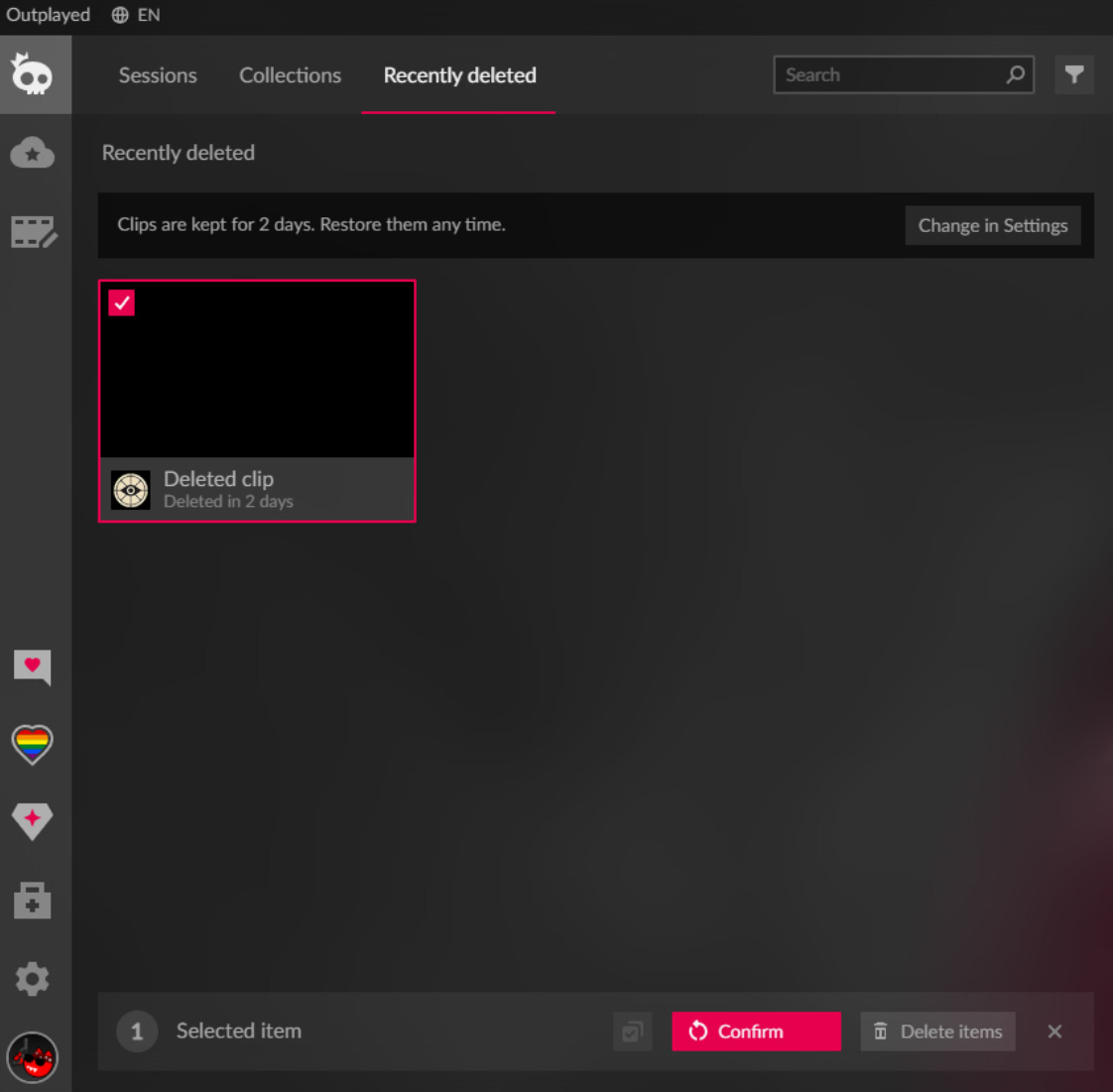
If you're running Outplayed version 174.0.12349 or above, you can restore manually deleted clips from the Recently Deleted tab in Outplayed.
Once you have selected the clips you can either click Confirm to restore it or Delete Items to permanently delete it:
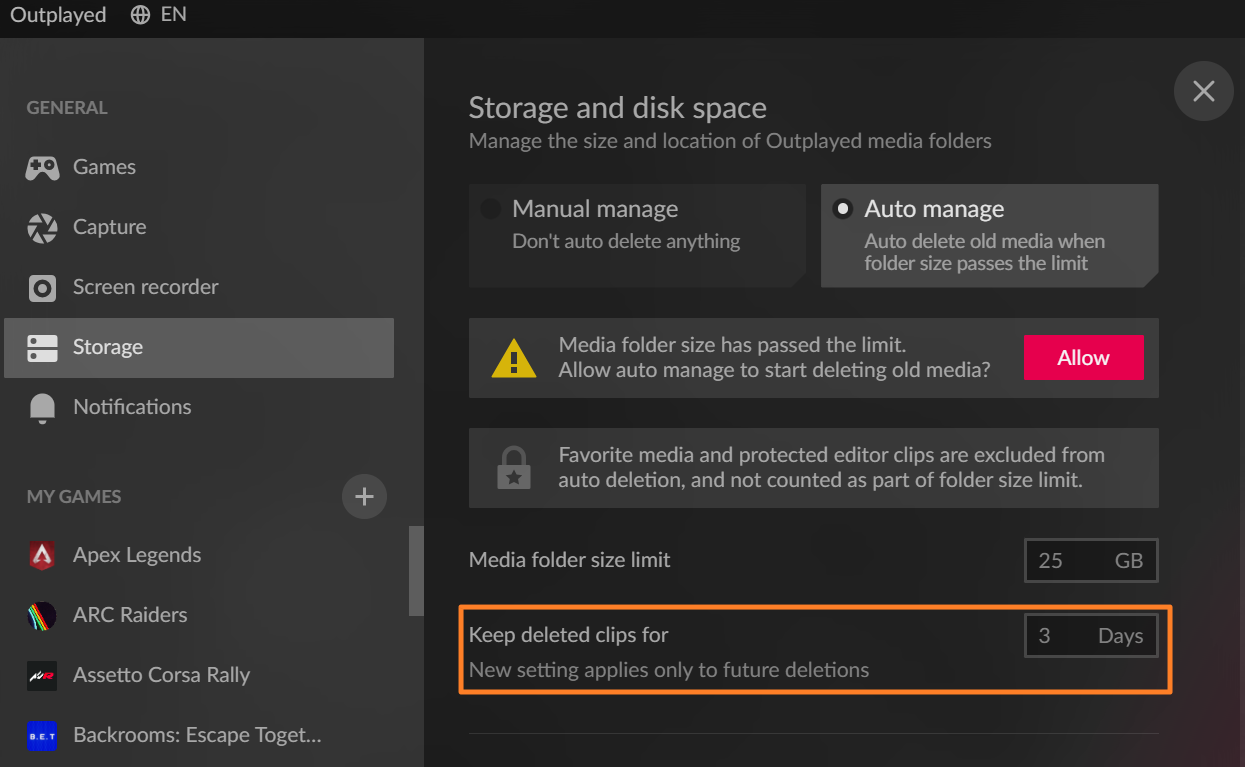
By default, clips are kept for 3 calendar days and are permanently removed at 23:59 UTC at the end of the final day. For example, if a clip is deleted on the 1st of the month, it will be permanently removed on the 3rd at 23:59 UTC.
You can customize how many days clips are kept before final deletion in your Outplayed Storage settings:
A couple of things to keep in mind:
- Changes to settings apply to future deletions only. Clips that have already been deleted will follow the setting that was active at the time they were deleted.
- Clips in Recently Deleted do not count toward your storage quota.
- Only clips that were manually deleted can be restored. If a clip wasn't recorded at all, recorded incorrectly, or was corrupted, we aren't able to restore or fix it retroactively. If you're running into recording issues, please try the troubleshooting steps here: Common Video Capture Issues.
You can always create a backup of your current recordings using the guide here: How to Backup and Restore your Outplayed recordings
If you decide to restore a clip it will be automatically marked as favorite.