Take me to...
- GPU Drivers
- Codecs
- Presets
- High Quality Settings
- Hardware-accelerated GPU scheduling
- Windows Game Options
- AMD Ryzen Processor
- Other Recording or Streaming Software running while recording with Overwolf apps
GPU Drivers
If your recorded videos are laggy, freeze on one frame, record for one second, have audio out of sync, or don’t capture at all your graphics card drivers might be outdated.
Old drivers can stop your GPU’s video encoder from working properly which is what makes video recording possible. If it’s not working correctly or out of date, you’ll likely run into issues.
To fix this, update your GPU drivers by visiting your graphics card manufacturer’s website:
After updating, restart your computer to make sure the changes take effect. Then try recording again.
Codecs
The best recording results usually come from using a codec that uses your dedicated GPU (graphics card) for encoding. Other codecs, like x264, rely on your CPU instead.
Using a CPU-based codec can cause problems as your CPU has to handle the recording plus everything else your system is doing, which can lead to broken or low-quality videos.
You can change the codec in your recording app settings (If you're unsure where this setting is please contact the app developers) or in Overwolf's Capture settings:

If your graphics card's encoder option is grayed out, even though your drivers are up to date, you can try doing a clean driver installation for a better fix.
To learn more about encoders and how they work, check out the articles in this category: Codecs.
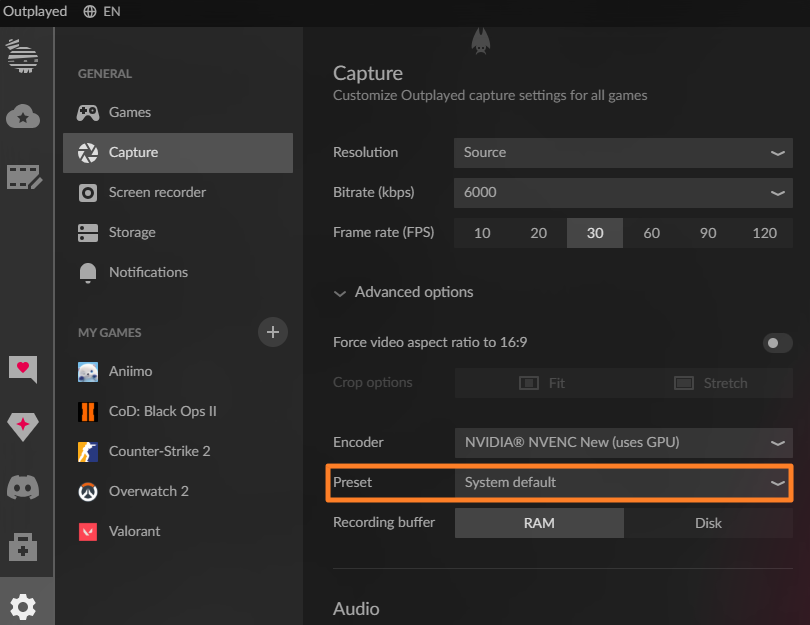
Presets
Some presets can use too much of your computer’s resources, which may lead to broken, laggy or poor-quality recordings.
To avoid this, make sure your preset in your Overwolf recording app is set to "Default" or "Automatic", then try recording again.
The option to change the preset shows in the advance options in the capture settings:
High Quality Settings
If your capture settings (such as resolution or FPS) are set too high for your system, your videos might not record properly.
For best results, follow the custom settings listed in the Minimum Recording Requirements & Recommended Settings article.
Try lowering the resolution and FPS restart the computer, then try recording a new clip to see if it works better.
Hardware-accelerated GPU scheduling
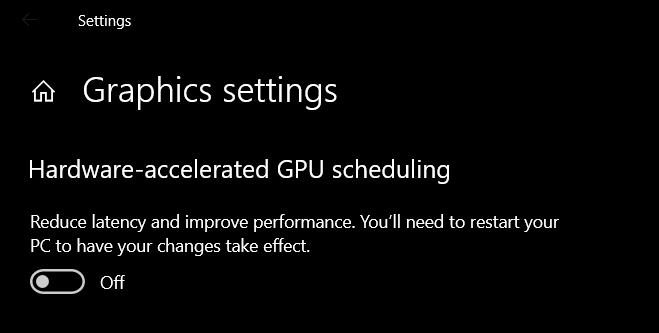
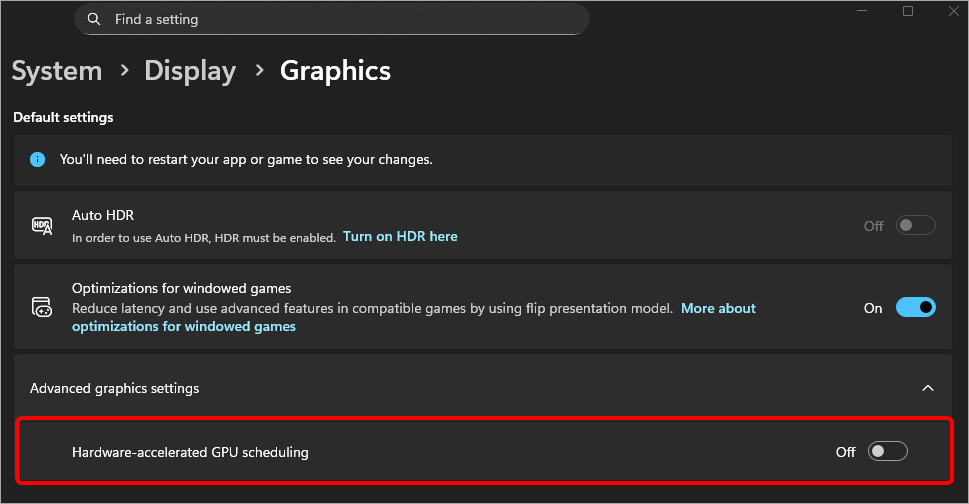
Windows 10 version 2004 (build 19041) introduced a new setting called Hardware-accelerated GPU scheduling. When this is turned on, it can interfere with Overwolf’s recording system (which is based on OBS) and cause problems with video capture or the recorded files.
To fix these issues, try turning this setting off:
- Windows 10:
- Windows 11:
If you prefer to keep the Hardware-accelerated GPU scheduling enabled, you can try to switch the game's display mode from 'Fullscreen' to 'Windowed'/'Windowed Borderless' in order to eliminate lags/dropped frames.
Windows Game Options
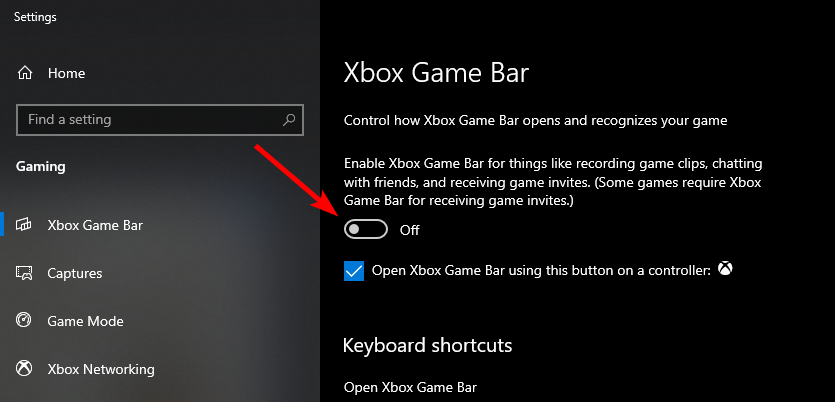
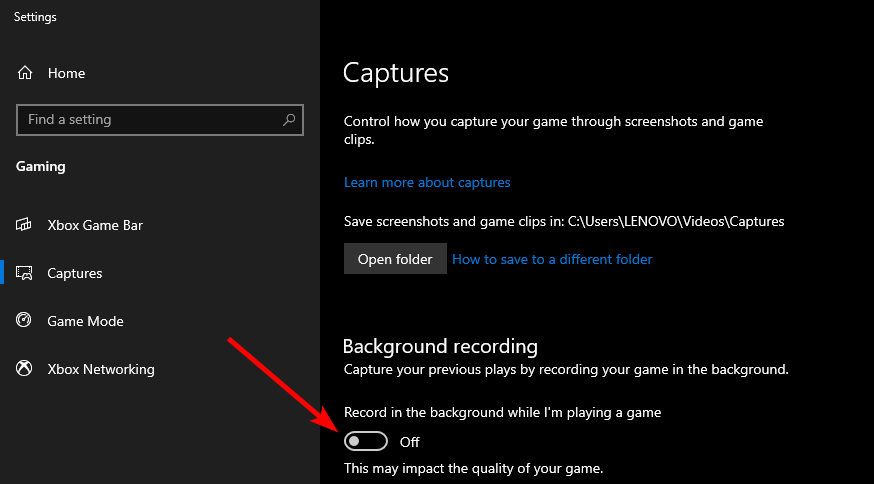
Disabling the following options through the Windows system settings can improve the recording:
- Xbox Game Bar
- Background recording
- Game Mode

If you're using an AMD Ryzen processor, updating your BIOS may help fix the recording issue.
To do this, visit your motherboard manufacturer’s website and follow the instructions for your specific motherboard model.
AMD Ryzen Processor
If you're using an AMD Ryzen processor updating your BIOS may help fix the recording issue.
To do this, visit your motherboard manufacturer’s website and follow the instructions for your specific motherboard model.
Other Recording or Streaming Software running while recording with Overwolf apps
If you're using other video capture or streaming tools at the same time as Outplayed, it may cause problems with your recordings or stop Outplayed from capturing altogether. This includes:
NVIDIA ShadowPlay / NVIDIA Share
OBS Studio
Wondershare
Streaming apps like Discord
Live wallpaper apps (Lively Wallpaper, Wallpaper Engine)
To avoid issues, please close or disable these programs before using your Overwolf recording app.
Also, make sure you're not using multiple Overwolf apps with recording features at the same time, as this can also cause problems.
Examples of Overwolf apps with recording features include:
- Avatar
- BUFF
- Game Capture
- Gazoom
- Insights Capture
- Medal
- Nuked.TV
- Valorant Tracker (TRN)
- Replay HUD
- Replays.lol