If your recordings lag only when viewed inside the Outplayed app, but play fine in a media player (like VLC), try these steps:
Turn Off Hardware Acceleration (Visual Artifacts)
Using the steps in: Visual Artifacts in Overwolf Apps (Hardware Acceleration).Check for Frame Rate Mismatch
Open Windows Settings → System → Display → Advanced Display Settings.
Look for your current refresh rate (e.g., 60Hz, 144Hz).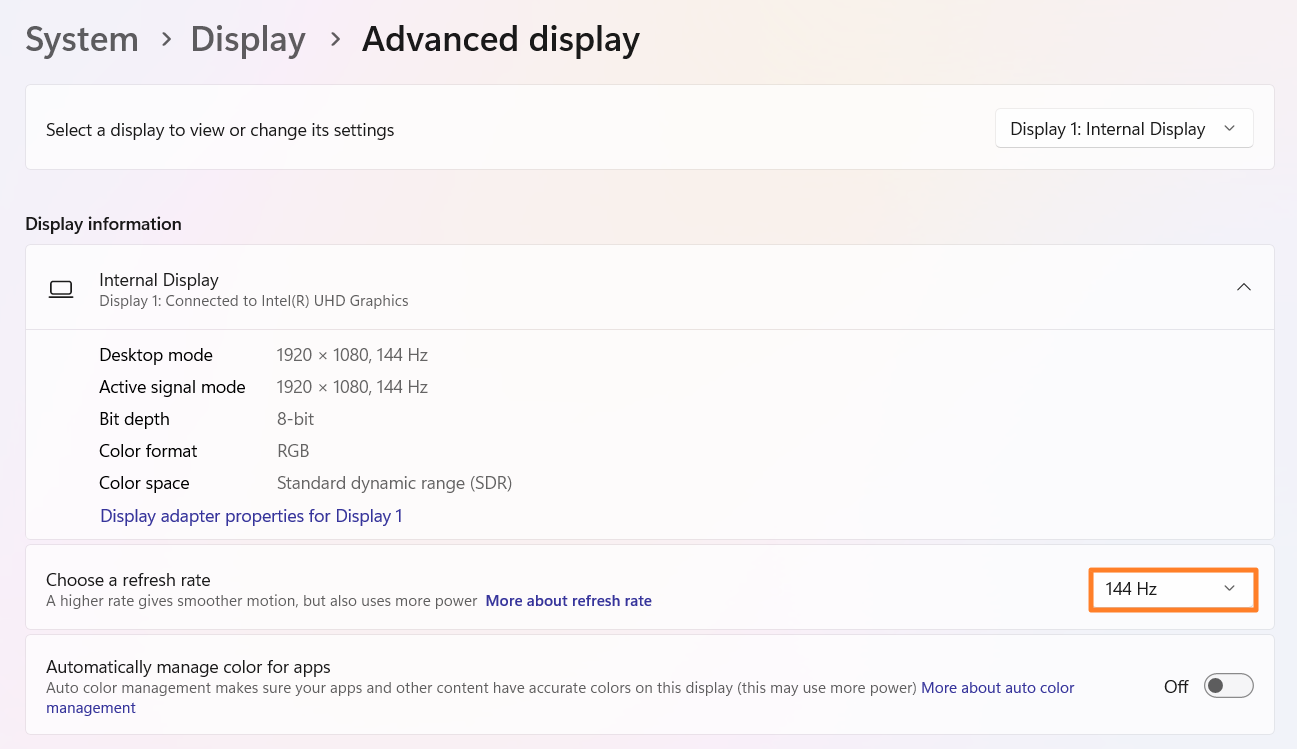
Check NVIDIA Max Frame Rate Settings:
Open the NVIDIA Control Panel and go to Manage 3D Settings: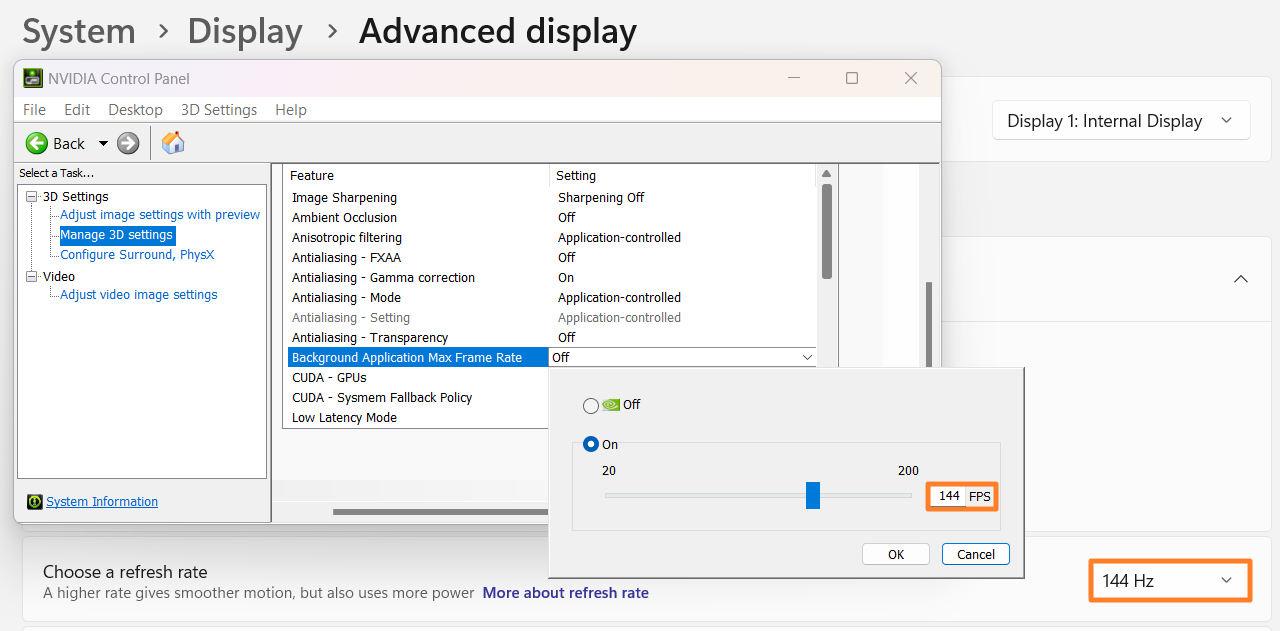
Make sure “Background Application Max Frame Rate” is disabled or set to match your Windows refresh rate.
You can also find this in the NVIDIA App under: Graphics → Global Settings → Max Frame Rate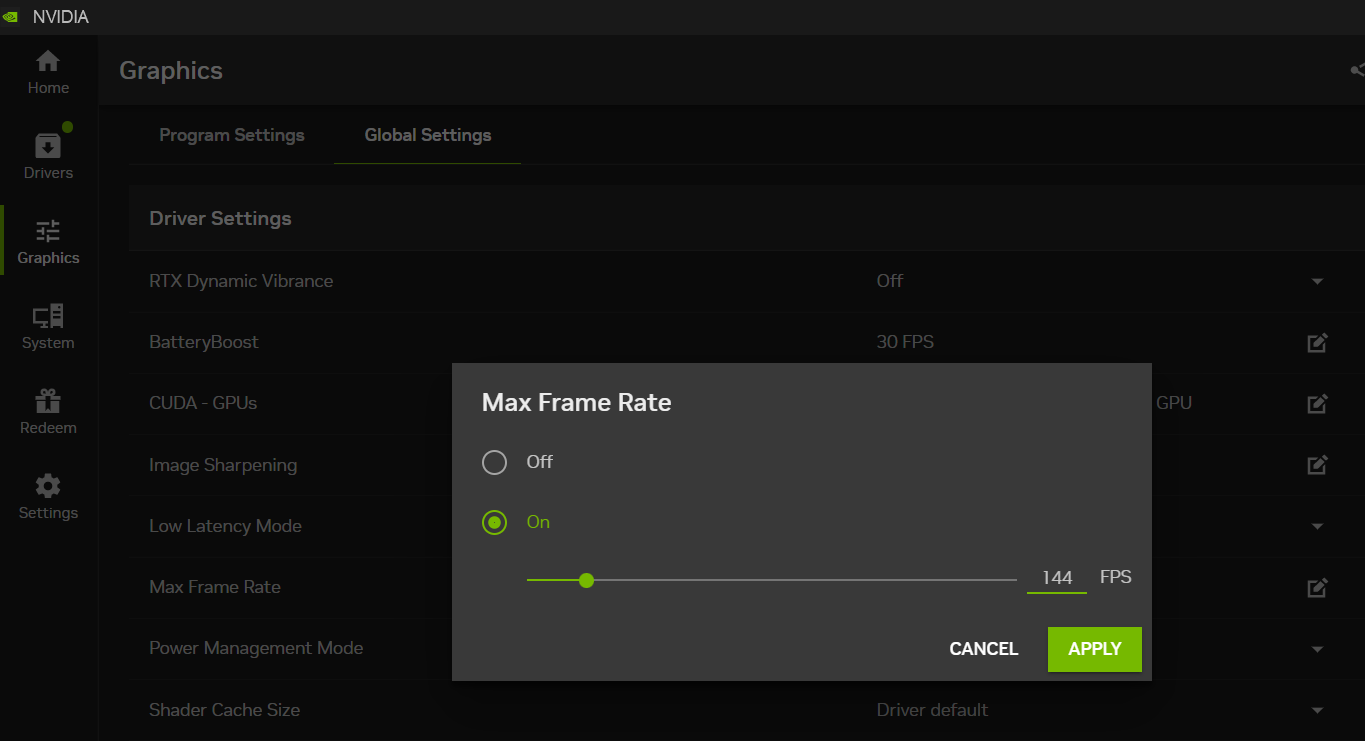
If you change any of these settings, make sure to restart your computer before testing the recording again.