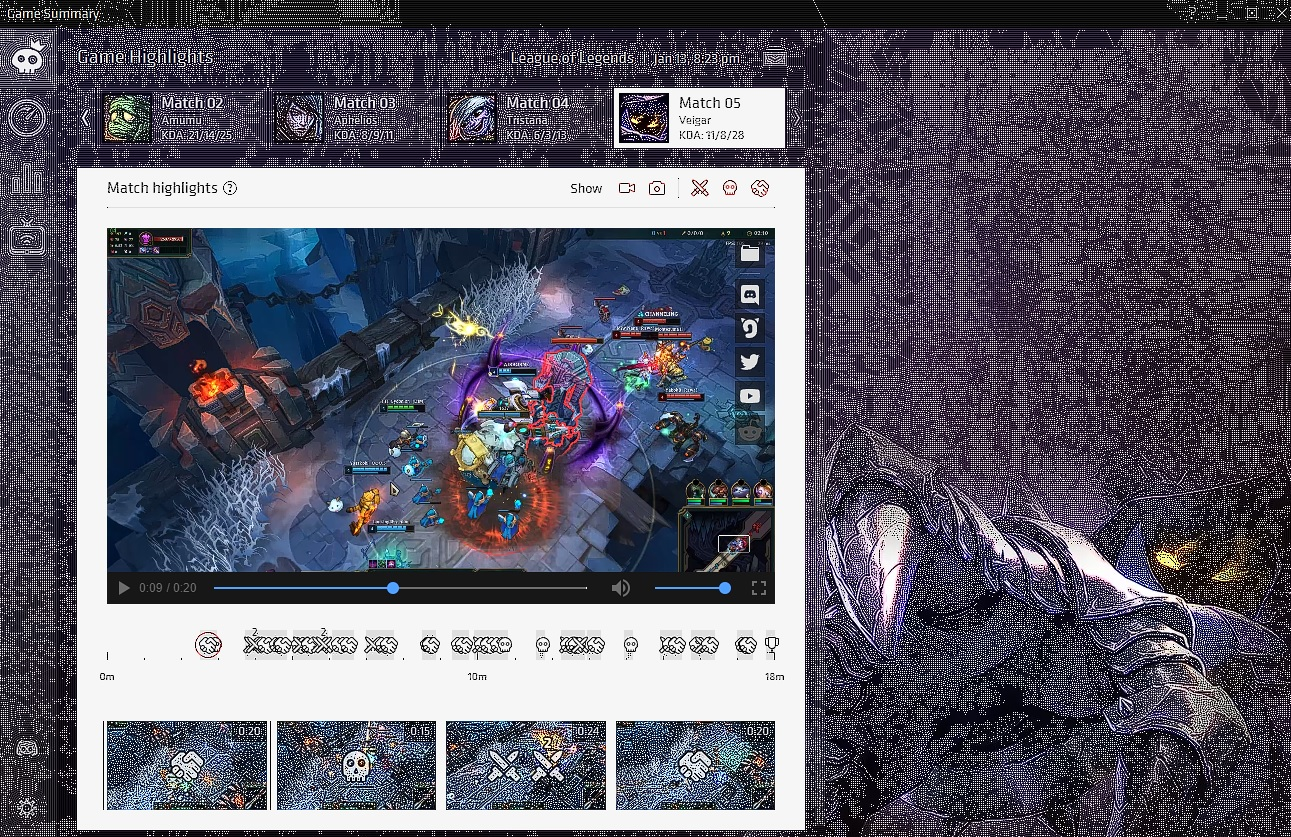
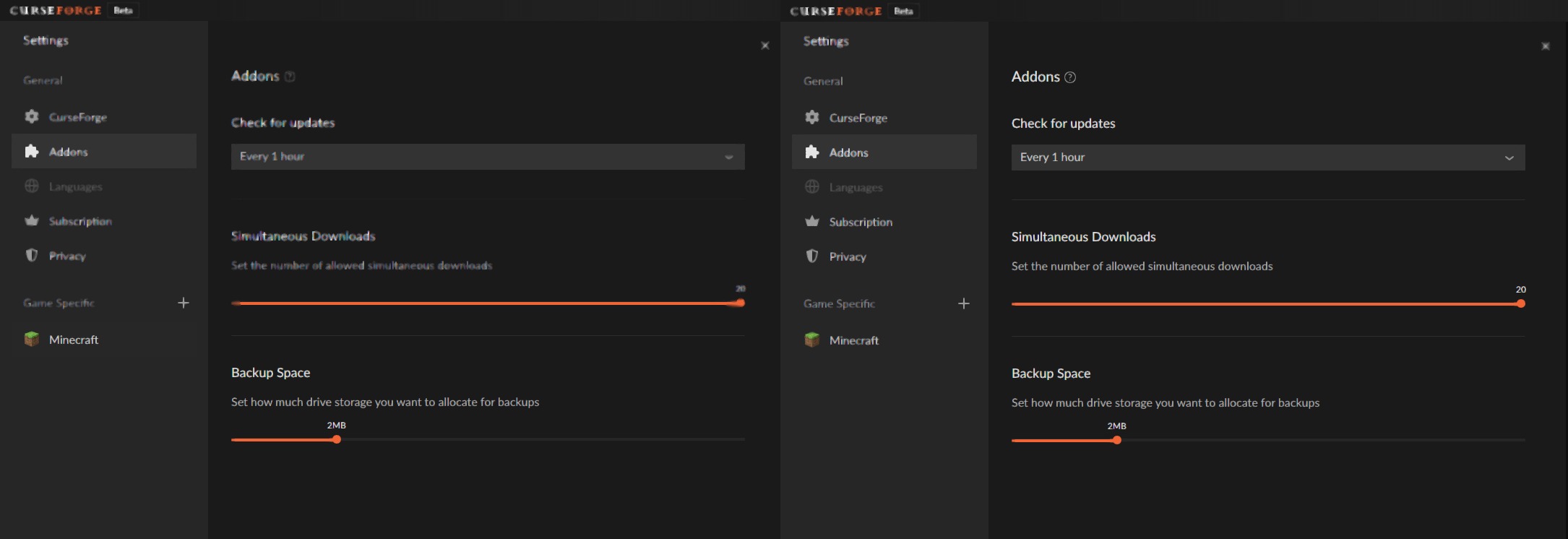
If the Outplayed app appear blurry, grainy, seem to refresh or flicker whenever you click on it (See examples below), the issue is most likely caused by a setting called Hardware Acceleration.
How to Fix the Issue
Turn off Hardware Acceleration in Overwolf:
Open Overwolf Settings
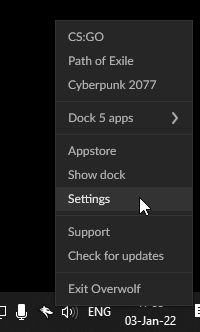
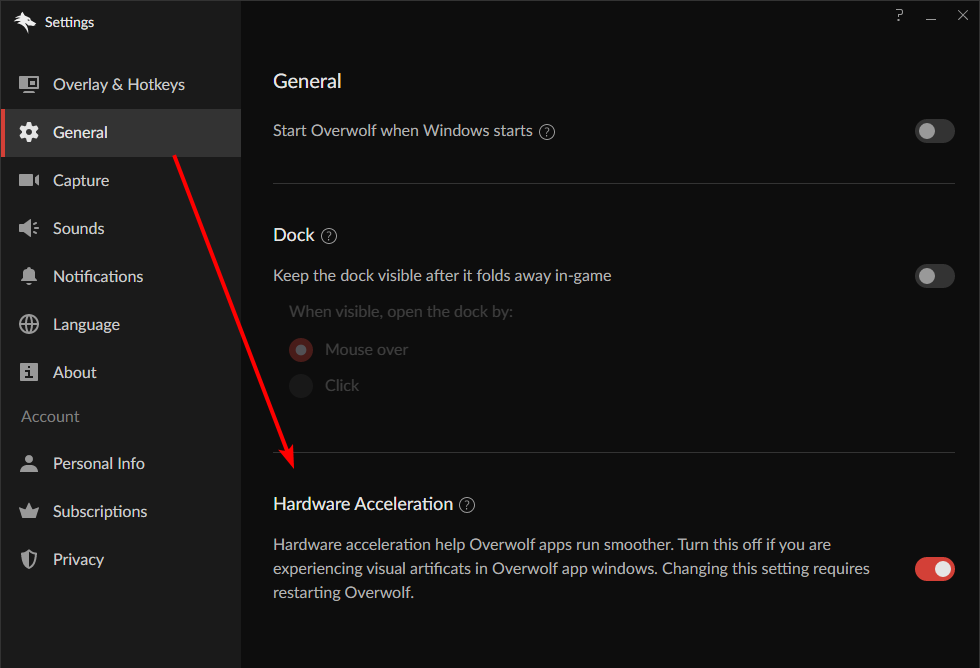
Go to the General tab
Toggle Hardware Acceleration off
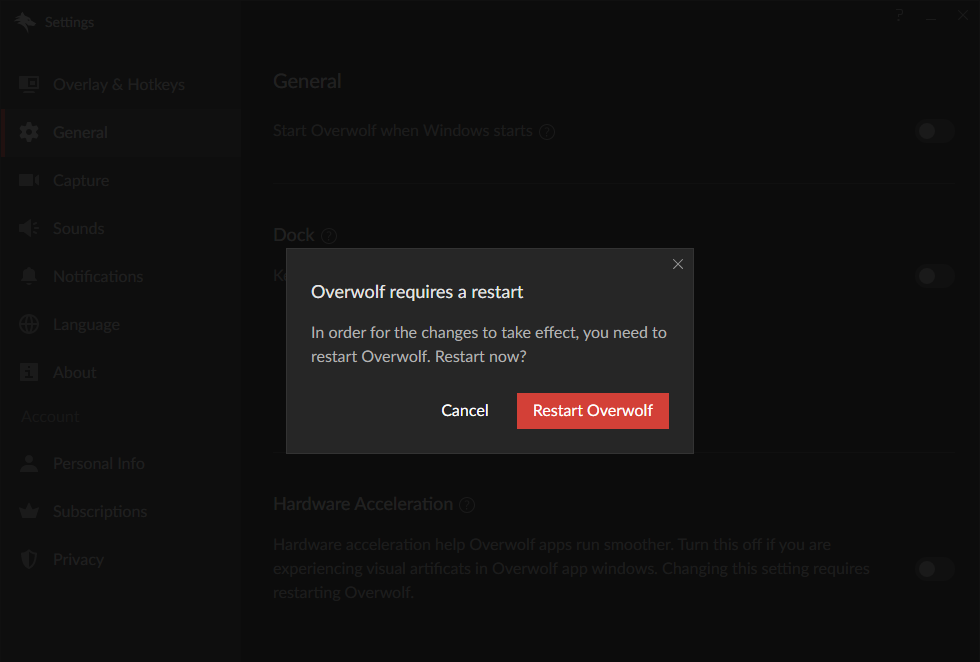
Restart Overwolf to apply the change
That’s it!
Examples
Can’t Disable It Through Settings?
If you’re unable to change the setting from within Overwolf, simply download and run the file attached below, then check if the issue is resolved.
If you need any additional help, please open a support ticket.