Is the app overlay too large in-game? Is your cursor not clicking where it should?
These problems are often caused by your DPI (display scaling) being set above 100%. To fix it, set your DPI back to 100% in your Windows display settings.
How to Change DPI (Display Scaling) in Windows:
- Right-click on your desktop and choose Display settings
- Scroll down to the “Scale and layout” section
- Under “Change the size of text, apps, and other items”, select 100% from the dropdown
- Restart your PC or log out and back in for changes to take full effect
If you do not want to change the Windows DPI please use our step-by-step guide on how to scale the Overwolf apps for higher DPI settings check out:
Scaling Overwolf Apps to Appear Properly with a High DPI Setting
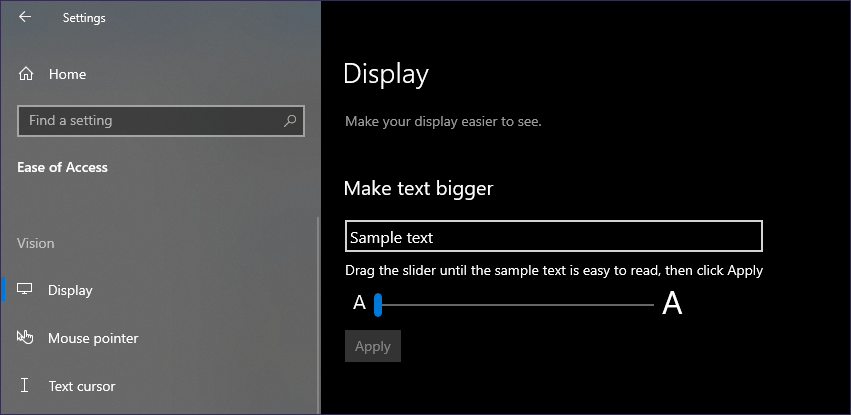
Another possible cause is your text size setting. To adjust it:
- Open Windows Settings
- Go to Ease of Access → Display
- Set the text size to the minimum value
- Restart your PC or log out and back in for changes to take full effect