GTA 6 is a console game (PS5 and Xbox Series X|S), so Outplayed can't record it the way it records your PC games. You can still share your best GTA 6 moments on Outplayed: save the clip on your console, move it to your PC, import it into Outplayed, then post it.
Before you start
- You need Outplayed on your Windows PC.
- You need a way to move the clip from your console to your PC: a USB drive, or OneDrive if you play on Xbox.
- Outplayed only imports MP4 files.
- Outplayed.tv takes files up to 400 MB. If your clip is bigger, you can trim it in Outplayed (step 4).
Step 1: Save the clip on your console
PS5
- Set your clips to save as MP4. From the home screen, go to Settings > Captures and Broadcasts > Captures > Video Clip Format and set the file type to MP4. Do this before you save the clip.
- When something great happens in GTA 6, press the Create button and select Save Recent Gameplay. You can save anything from the last 15 seconds up to the last hour. A shorter clip gives you a smaller file.
More details: How to capture PS5 gameplay and screenshots (PlayStation Support).
Xbox Series X|S
- When something great happens in GTA 6, press the Xbox button to open the guide, then press X to save the last 30 seconds.
- For a longer clip (up to the last 2 minutes), open the guide, press the View button and choose a length.
- On the newer Xbox Wireless Controller, you can also press and hold the Share button to save a clip.
More details: Capture game clips and screenshots (Xbox Support).
Step 2: Move the clip to your PC
PS5: with a USB drive
- Plug a USB drive formatted as FAT32 or exFAT into your PS5. Don't use a drive set up as PS5 extended storage.
- Open Media Gallery, select your clip, then select ... (More) > Copy to USB Drive.
- Plug the USB drive into your PC and copy the clip to a folder on your PC, for example your Videos folder.
Xbox: with OneDrive
- Press the Xbox button, go to My games & apps > See all > Apps and open Captures.
- Select Manage, select your clip and choose Upload to OneDrive.
- On your PC, open OneDrive (or OneDrive.com) and download the clip from Videos > Xbox Game DVR.
Xbox: with a USB drive
- Plug in a USB drive formatted as NTFS. It can't be the drive your games are installed on.
- In the Captures app, select Manage, select your clip and choose Copy to external storage.
- Plug the USB drive into your PC and copy the clip to a folder on your PC.
More details: Back up your game captures (Xbox Support).
Step 3: Import the clip into Outplayed
- Open Outplayed and click the Sessions icon on the left.
- Go to Collections > Favorites.
- Click the Import videos button next to the search bar and pick your clip. You can also drag the file straight into Outplayed.
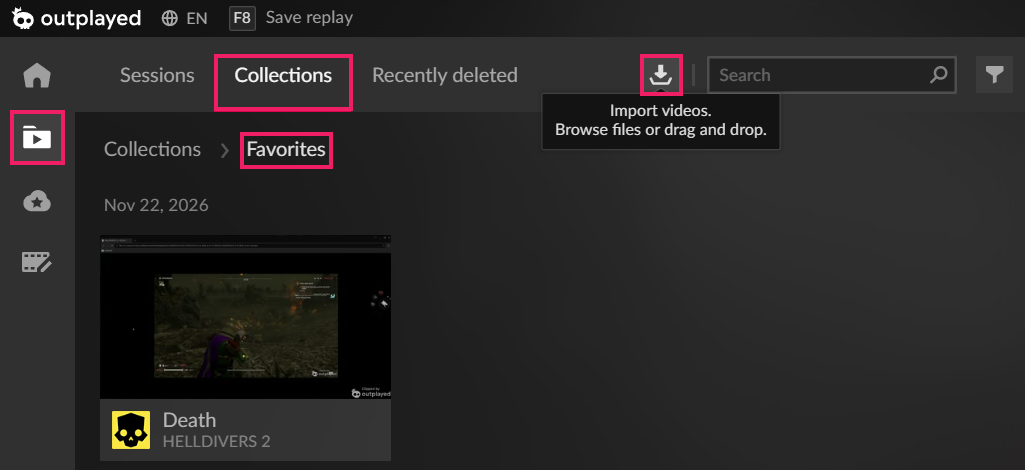
Your clip shows up at the top of Favorites, under Recently imported. Outplayed copies the file into its own media folder, so imported clips count toward your Outplayed storage space.
Step 4: Trim the clip (optional)
If your clip is long or over 400 MB, cut it down to the best part before you post it.
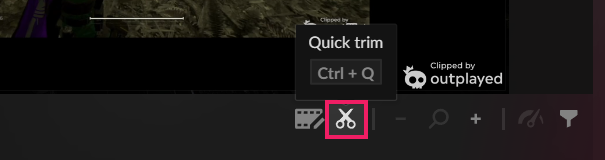
- Open the clip and click the Quick trim (scissors) icon under the player, or press Ctrl + Q.
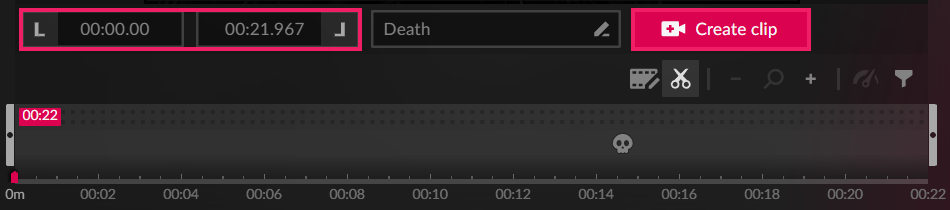
- Set where the clip starts and ends. Drag the handles on the timeline or type the times, and give the clip a name.
- Click Create clip. Outplayed saves the shorter clip in Favorites, next to the original.
Step 5: Post it on Outplayed
- Open the clip you want to share (the trimmed one, if you made one).
- Click Post to profile, give it a title and click Post. The clip goes on your Outplayed profile, where other players can discover it.
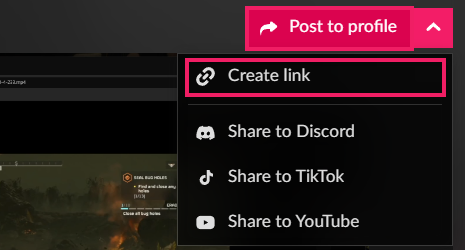
- Just want a link to send to friends? Click the arrow next to Post to profile and choose Create link. The same menu also shares to Discord, TikTok and YouTube.
Tip: Outplayed doesn't have a GTA 6 game tag yet, so your clip posts without a game. Put "GTA 6" in the title so people know what they're watching.
FAQ
Why can't Outplayed record GTA 6 for me?
Outplayed records games running on your Windows PC. GTA 6 runs on PS5 and Xbox Series X|S, so the recording has to come from your console.
Outplayed won't import my clip
Outplayed only imports MP4 files. On PS5, set the file type to MP4 (step 1), then save a new clip. If Outplayed says the file seems to be corrupted, copy the clip from your console again and import the new copy.
My clip won't upload
Outplayed.tv takes files up to 400 MB. Trim the clip (step 4) and try again. For other upload problems, see the Outplayed sharing clips FAQ.