Take me to...

How to record your webcam
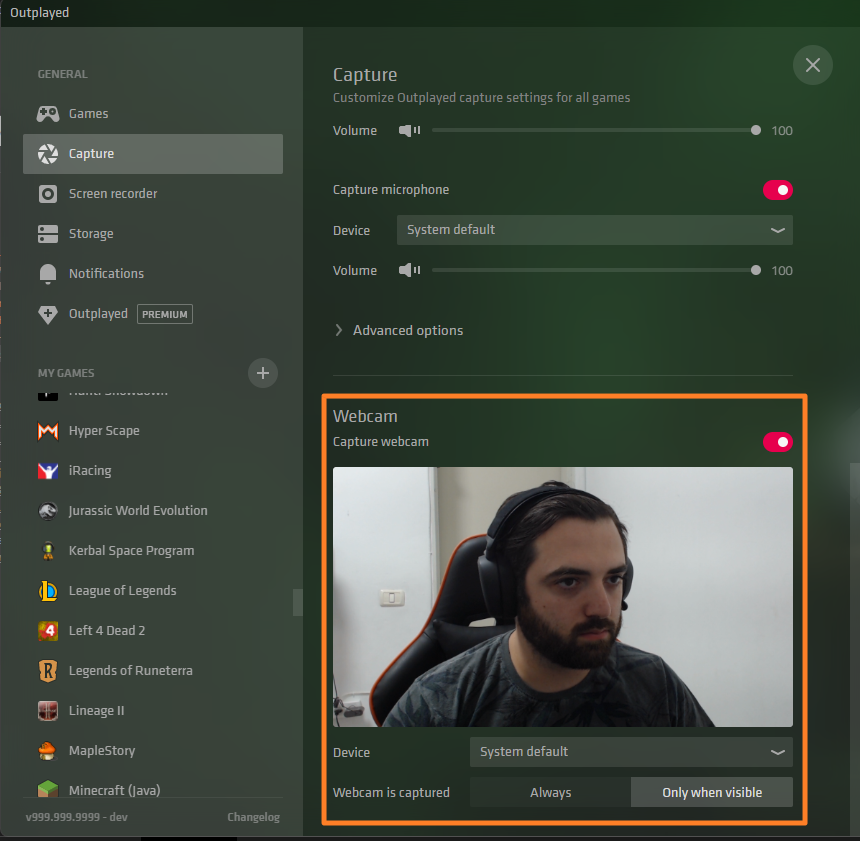
To record your webcam along with the gameplay you will need to go to the Outplayed Capture settings and enabled the Webcam:


Unnamed


Then under Device select your webcam device. 


Under the "Webcam is captured" setting selecting "Always" means that the webcam will be recorded even when hidden, to allow you to play without interruption. Just set the window and when you're good to go press the hotkey to hide it. 

Note: This is only supported on DX11


"Only when visible" means that the webcam will not be recorded when the webcam window is hidden. 


When the webcam window is open in game you can change the location of the window by clicking and moving the window and change the size of the webcam window:


In memory of May 13.10.23 <3

Note: This feature is only supported when recording games using the Capture Modes and not supported for Outplayed games with no in-games overlay support.


How to use virtual webcams with Outplayed

Note: Outplayed does not support streaming at this time.


If you are trying to record a virtual webcam please make sure that it is fully enabled before starting your game.

For example - In order to use Vtube Studio while recording with Outplayed please make sure that your avatar appears correctly while in OBS Studio. Then set the Outplayed webcam settings to "OBS Virtual Camera" and your avatar should appear after clicking on "Start Virtual Camera" in OBS: 
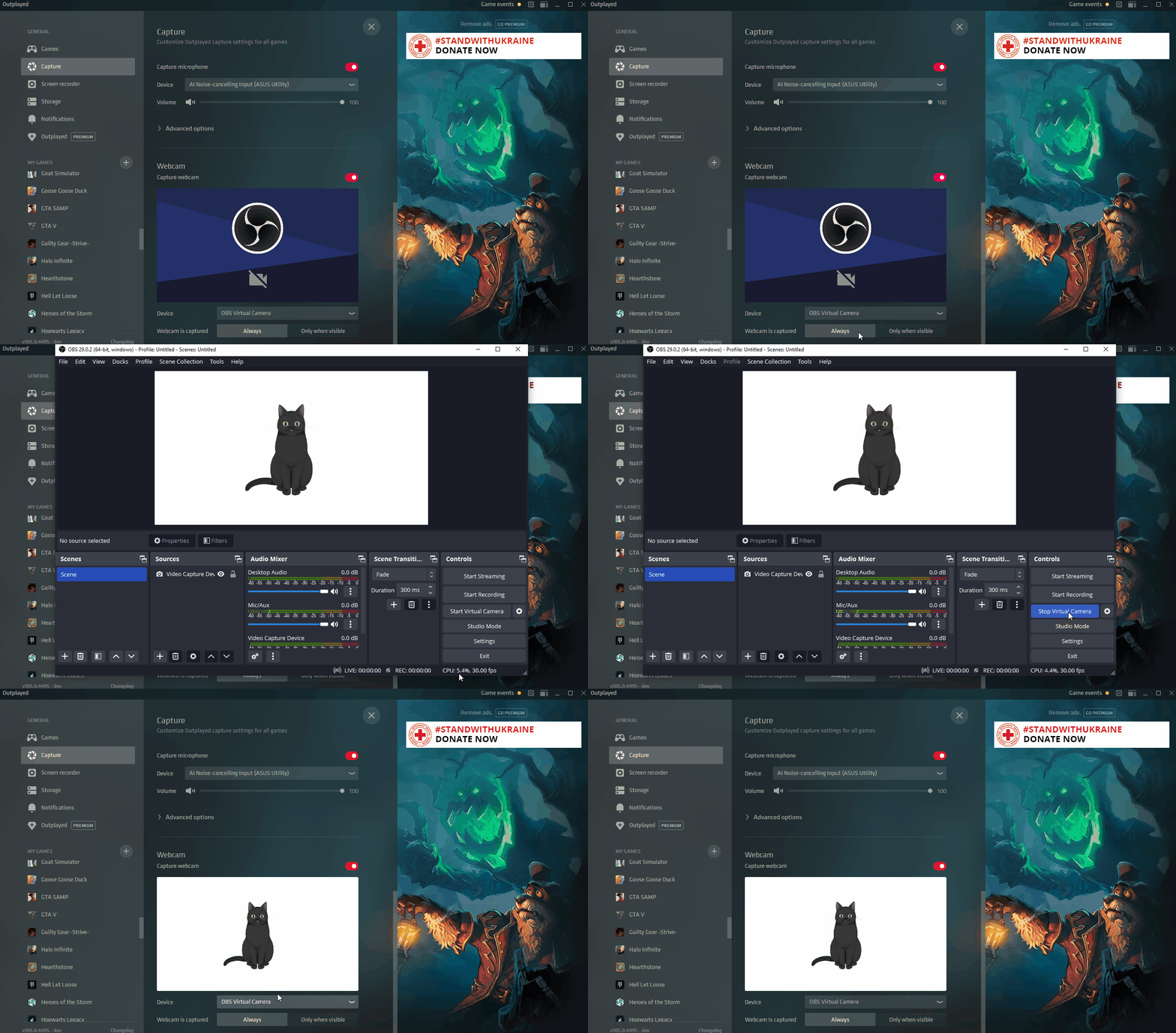
Outplayed does not fully support virtual webcams such as OBS Studio, NVIDIA Broadcast and others. They may work in the preview however we are unable to provide further support regarding virtual cameras.